
LintelDesk vs. cloud productivity tools.
Choosing productivity software is not simply a question of offline versus online. It is about where your files live, whether you need collaboration, how your tools work without a connection, what platforms they support, and how you prefer to pay.
The main difference
LintelDesk is designed as a local-first, single-user Windows workspace. Cloud productivity suites often emphasize account-based access, sharing, synchronization, and collaboration. Some cloud-connected tools also support offline modes, so the label alone is not enough to decide.
Local-first desktop work
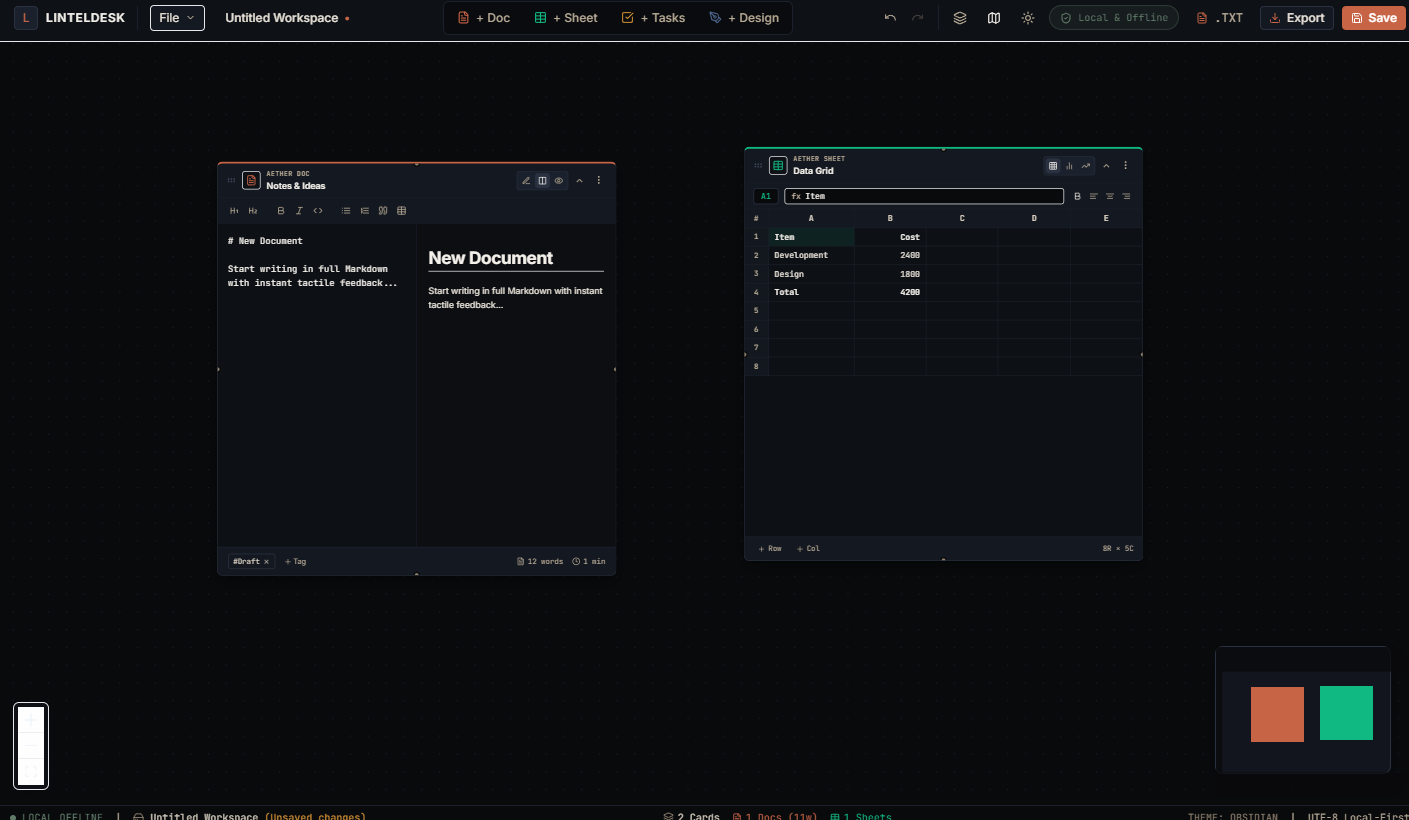
Docs, Sheets, Tasks, and Canvas in one Windows program. Files are stored locally, and the installed app does not require an online account or online activation for day-to-day use.
Shared and synchronized work
Often better for browser access, multiple collaborators, shared links, cross-device workflows, and centralized team work—depending on the product and plan.
Installed apps with their own trade-offs
Desktop office applications can work offline after installation and activation. However, the license, cloud-storage setup, updates, and connected services may still require occasional internet access.
Side-by-side comparison
This compares broad workflow models, not every plan or feature of every provider. Confirm the current requirements of any software you are considering.
| What matters | LintelDesk | Cloud productivity workspace | Installed office suite |
|---|---|---|---|
| Primary model | Single-user Windows desktop workstation | Account-based web or connected workspace | Installed document and spreadsheet apps |
| Internet during daily work | Not required after installation | Depends on the tool; some provide configured offline modes | Often works offline after installation and activation; license checks can still matter |
| Where active project files live | Locally on your computer | Often cloud-based, sometimes with selected local/offline copies | Can be local or cloud-synced depending on where files are saved |
| Live collaboration | Not included | Common strength | Varies by product and connected service |
| Built-in modules | Docs, Sheets, Tasks, and Canvas | Varies; some needs may require separate apps or services | Typically strongest for documents and spreadsheets; other workflows may use additional apps |
| Cross-device/mobile access | Windows 10/11 (64-bit) only | Often available, depending on platform and plan | Depends on the suite and device support |
| Price model | $49 USD one-time | Free tiers and/or recurring plans, varies by service | Subscription or one-time purchase options exist, depending on product |
| Backups and sync | You manage separate backups; no built-in cloud sync | May include cloud sync and version history, depending on service | Depends on local backup practices and any connected cloud-storage service |
Offline support is not the same across every app
It is important to compare the actual setup, not make blanket assumptions about cloud tools.
Offline mode must be prepared
Google's instructions explain that Docs, Sheets, and Slides can be used offline after offline access is configured. That setup has browser, extension, account, and file-availability requirements. This can be useful if you already work in Google's ecosystem.
Installed apps can work offline
Microsoft says installed Word, Excel, and PowerPoint apps can be used offline after installation and activation. Some Microsoft 365 licensing and connected features still involve periodic internet requirements, so check the license you plan to use.
Questions to test before committing
- Can I create and edit every file type I need with Wi-Fi turned off?
- Do I need to enable offline mode or pre-download each file?
- Will I need to sign in again or reactivate after an extended period offline?
- Are my files stored locally, synced to a cloud, or both?
- Can I collaborate with clients or team members in the way I need?
- How do I back up and export my work if I stop using the tool?
Which approach should you choose?
Start with the requirements you cannot compromise on.
If file location and independence matter most
Consider LintelDesk if you mainly work on a Windows PC, want your workspace stored locally, and do not need live multi-person editing, mobile access, or built-in cloud synchronization.
If collaboration is central
Choose a cloud-connected workspace when several people must edit the same files, access shared project information from different devices, or collaborate with clients through links and permissions.
If document compatibility is the priority
Evaluate installed office suites when advanced document, spreadsheet, and presentation compatibility is more important than having notes, task boards, and diagrams together in one lightweight workflow.
Where LintelDesk fits—and where it does not
The goal is to help you decide, not to claim that one application is best for everybody.
A focused solo workflow on Windows
LintelDesk may fit writers, freelancers, and solo operators who want documents, basic calculations, tasks, and diagrams in one local workspace with a one-time $49 purchase.
A team or cross-platform workflow
It is not designed for real-time collaboration, centralized administration, mobile access, Mac/Linux use, accounting, invoicing, or automatic cloud backups. If those are requirements, choose tools that explicitly support them.